Recording a demo
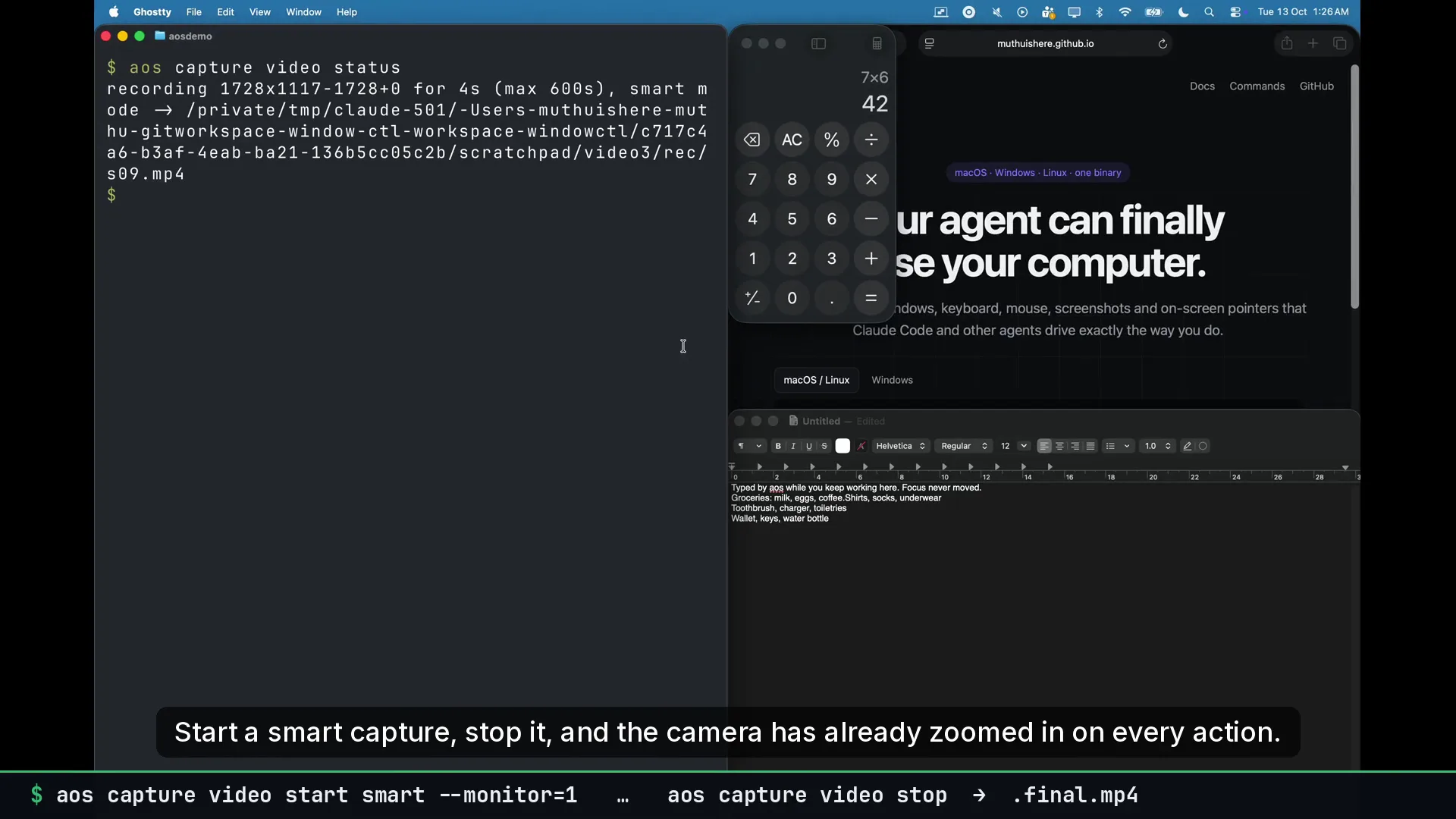
aos capture video records the screen and renders a zoomed cut that follows the action.
Example
Section titled “Example”aos capture video start smart --audio=mic --out=~/Movies/demo.mp4# ... run through the demo and talk ...aos capture video stopraw: /Users/you/Movies/demo.mp4 (63.1s)final: /Users/you/Movies/demo.final.mp4events: /Users/you/Movies/demo.events.jsondemo.final.mp4 is the one to share. It is 1920x1080. It starts wide, zooms in on what you are working on, and pulls back out when nothing is happening. demo.mp4 is the untouched recording. Stop never deletes it. If rendering fails, the error is printed and the raw file stays.
aos capture video start smart # window + cursor + pointing (recommended)aos capture video start monitor --monitor=2 # wide, zooms to each aos actionaos capture video start app --app=Chrome # follow one app's windowaos capture video start mouse --zoom=2 # follow the cursoraos capture video start window --app=Terminal # record only that windowaos capture video start region --region=0,0,1280,720 --max=2mOptions for start
Section titled “Options for start”| flag | what it does |
|---|---|
--audio=none|mic|system|both |
what sound to record. Default none |
--mic=<name|index> |
pick a microphone. List them with aos capture video devices |
--out=<path.mp4> |
where to write. The final cut and events file sit next to it |
--fps=30 |
recording frame rate |
--zoom=2 |
zoom factor for the cursor-following modes |
--max=10m |
hard time limit, enforced by ffmpeg |
--indicator=false |
hide the on-screen ● REC caption |
--json |
machine-readable output |
Steering the camera while recording
Section titled “Steering the camera while recording”aos capture video focus --app=Chrome --find="Sign in" --zoom=2aos capture video focus --rect=100,100,800,450 --hold=4saos capture video unfocusaos capture video follow mouse # or app --app=…, smart, offaos capture video mark "checkout works"aos capture video statusHow the camera decides where to look
Section titled “How the camera decides where to look”While a recording runs, aos commands log what they touched to the events file:
| command | what it logs |
|---|---|
find |
the bounds of the match |
draw |
the sign and the thing it points at |
window focus, window move |
the window bounds afterwards |
key type, key press with --app |
that window |
mouse click |
a small box around the pointer |
capture screenshot --app |
that window |
The recorder also samples the cursor about 12 times a second and the active window about 3 times a second. On stop, the camera target at each instant is chosen in this order: an explicit focus, then draw and find targets, then the cursor when it moves inside a large window, then the active window, then wide.
Camera moves are smoothed. The camera lags about 0.3 s, never overshoots, and ignores hand jitter. Actions less than 3 s apart chain without going back to wide. Clicks add a short zoom pulse and a highlight ring. The same events always produce the same video.
Re-rendering
Section titled “Re-rendering”The events file is an open, versioned JSON format. Re-render with different settings without recording again:
aos capture video zoom ~/Movies/demo.mp4 --max-zoom=2 --ease=0.8 --out=demo.cut.mp4aos capture video zoom demo.mp4 --follow=offaos does not edit video beyond the camera. Cut the result in any editor.
Requirements
Section titled “Requirements”- ffmpeg on
PATH:brew install ffmpeg,winget install Gyan.FFmpegorsudo apt install ffmpeg. - On macOS the terminal needs Screen Recording permission:
aos permission request screen. aos doctorchecks both.
Gotchas
Section titled “Gotchas”- System audio on macOS needs a loopback device such as BlackHole. Without one,
--audio=systemexits 2. aos never installs it for you. Windows uses WASAPI loopback or Stereo Mix. Linux uses the PulseAudio monitor source. - Recording never starts on its own. The agent skill tells agents to ask first and to stop when done.
- Only one recording runs at a time.
aos capture video statussays whether one is running. - The default cap is 10 minutes. Raise it with
--maxfor longer sessions.