Press a button by name
Goal. Press “Equals” in Calculator, or “Wi-Fi” in Settings, by the label a person would read, not a pixel position.
Commands
Section titled “Commands”Find the control first:
aos find --app=Calculator --text=7aos find Safari --text="Reload this page" --role=button --jsonaos find --title=Settings --text=Wi-Fi --source=ocr --allfind prints the control’s bounds and center. Exit 3 means the window or the text was not found.
Press it in one step:
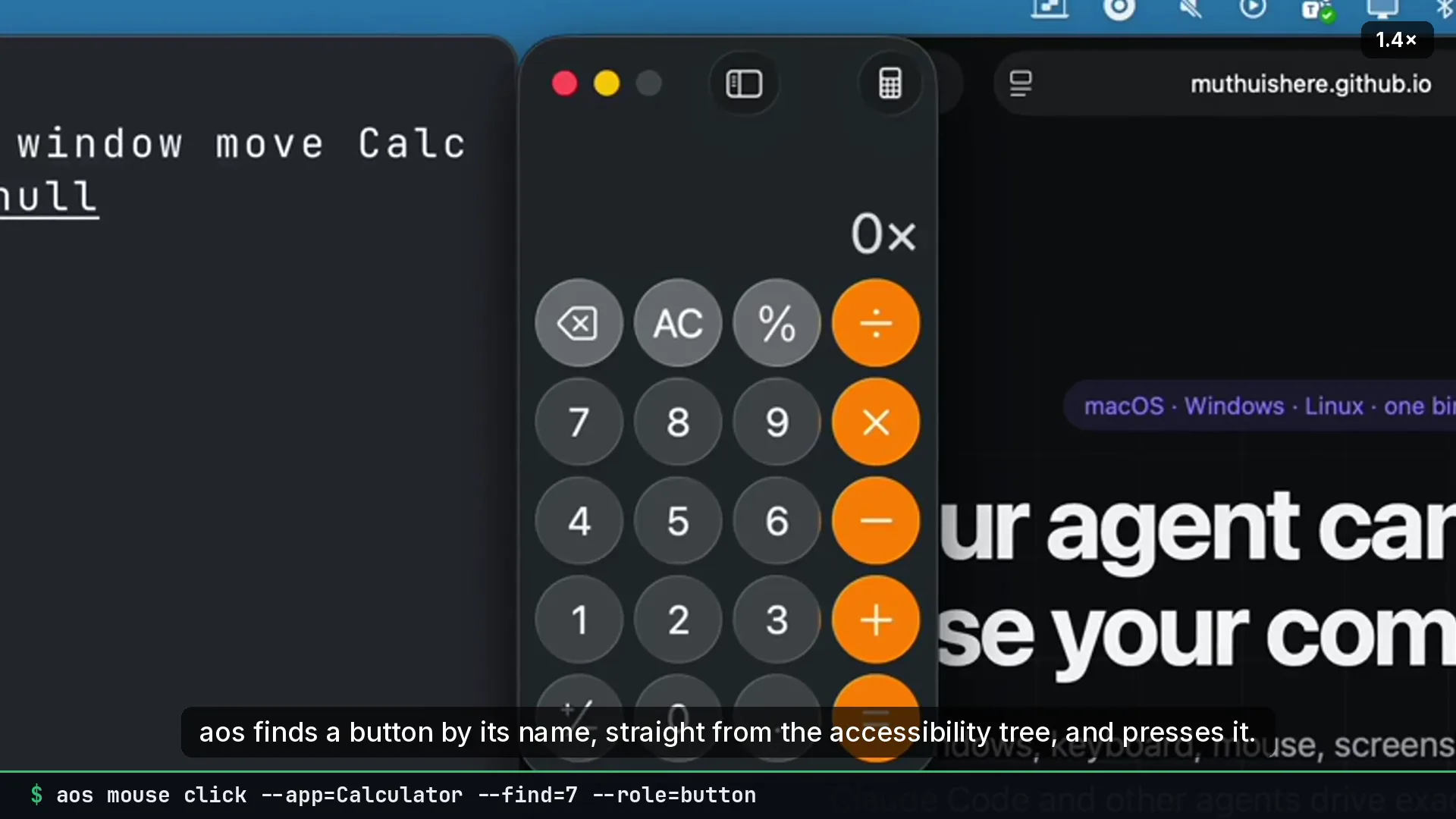
aos mouse click --app=Calculator --find=7 --role=buttonaos mouse click --app=Calculator --find=EqualsWith --find, the click goes through the accessibility API. No pointer moves and no focus changes.
Calculate 7 × 6 end to end:
aos mouse click --app=Calculator --find=7aos mouse click --app=Calculator --find=Multiplyaos mouse click --app=Calculator --find=6aos mouse click --app=Calculator --find=Equals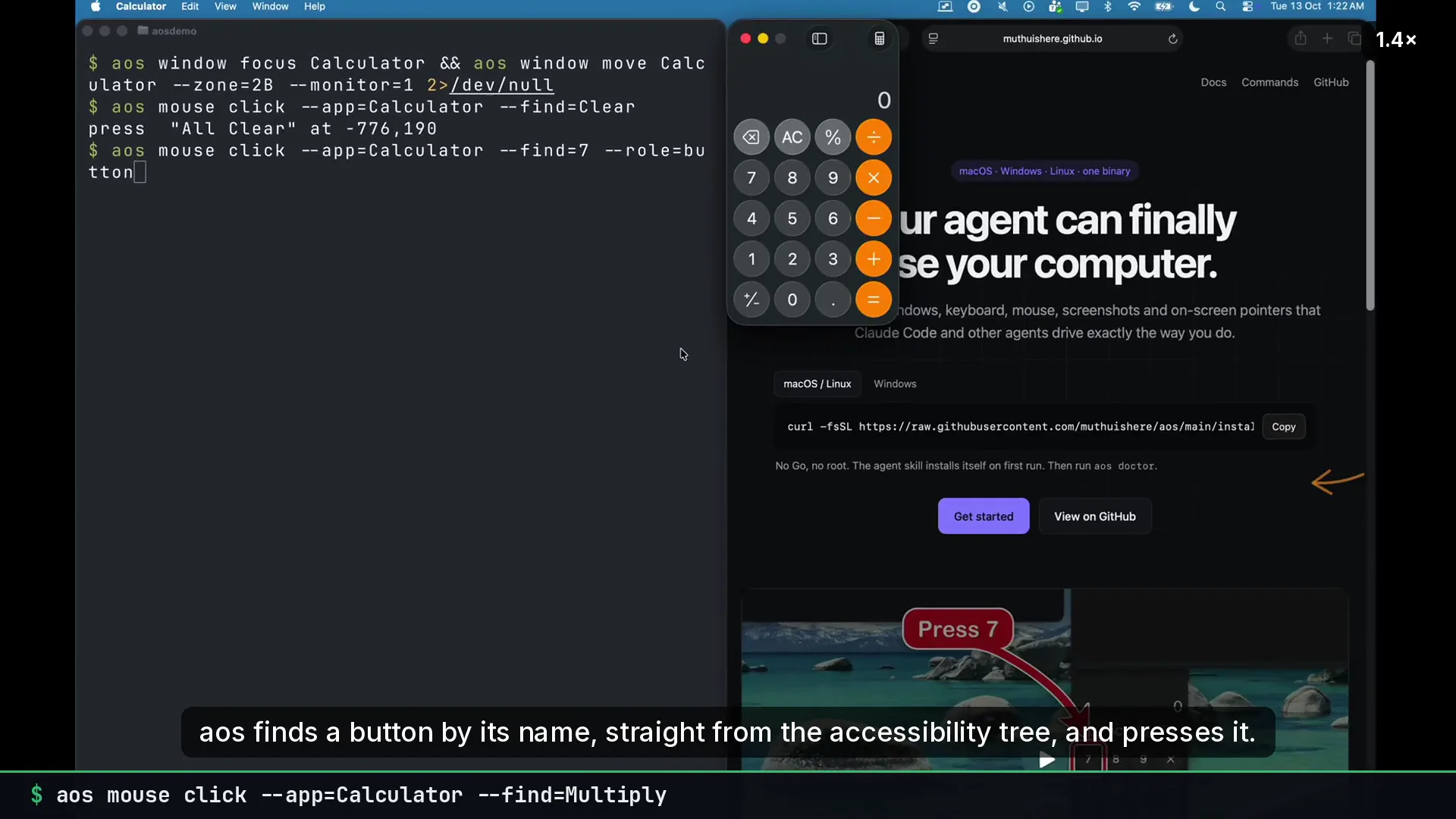
What to tell an agent
Section titled “What to tell an agent”In Calculator, press 7, multiply, 6, equals. Use the button names, do not guess coordinates.
Gotchas
Section titled “Gotchas”- Labels are the accessible names. On macOS Calculator, × is “Multiply” and = is “Equals”.
aos find --allwith a broad--textlists candidates. --rolenarrows the match. Usebutton,menuitemorlinkwhen the same text appears in several places.- OCR is the fallback.
--source=ocrfinds text that has no accessibility node, such as text inside a canvas, but a click then needs the pointer. - Needs Accessibility permission on macOS.
aos permission checktells you.