Arrange a coding layout across monitors
Goal. Editor on the big monitor, terminal and browser split on the second, every morning, without dragging windows.
Commands
Section titled “Commands”See what you have and what the zones mean:
aos display listaos window listaos window zones --monitor=2Place the windows:
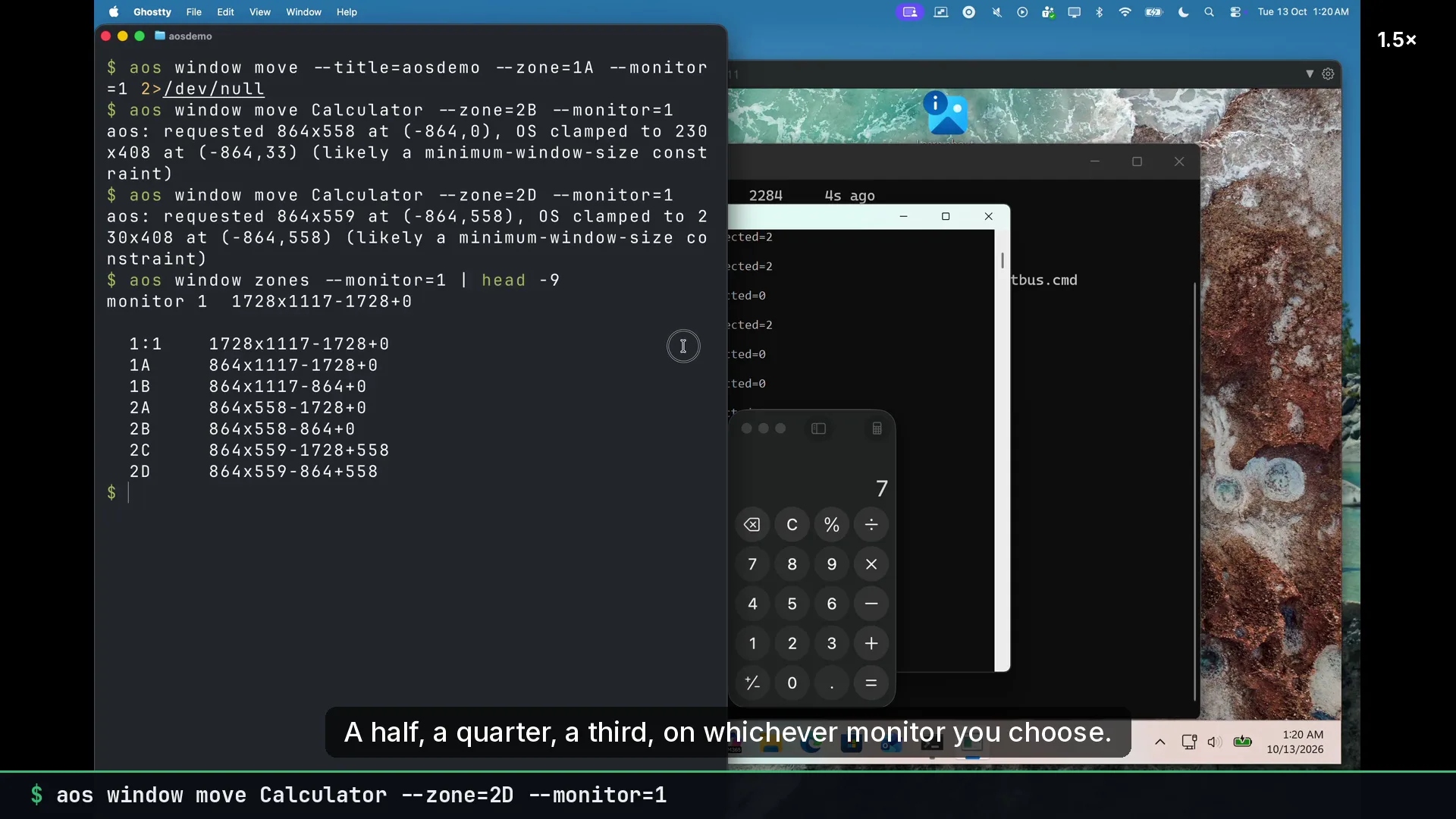
aos window move "Visual Studio Code" --monitor=1 --zone=1Aaos window move Ghostty --monitor=2 --zone=1Aaos window move "Google Chrome" --monitor=2 --zone=1BZone names: 1A and 1B are the left and right halves. 2A to 2D are the quarters. 1:3 is the first of three columns, 2:3 the second, and so on.
Save the arrangement and restore it later:
aos window save ~/.config/aos/layouts/coding.jsonaos window arrange ~/.config/aos/layouts/coding.jsonOr feed a layout inline:
echo '[{"app":"Google Chrome","zone":"1A"},{"app":"Slack","zone":"1B"}]' | aos window arrange -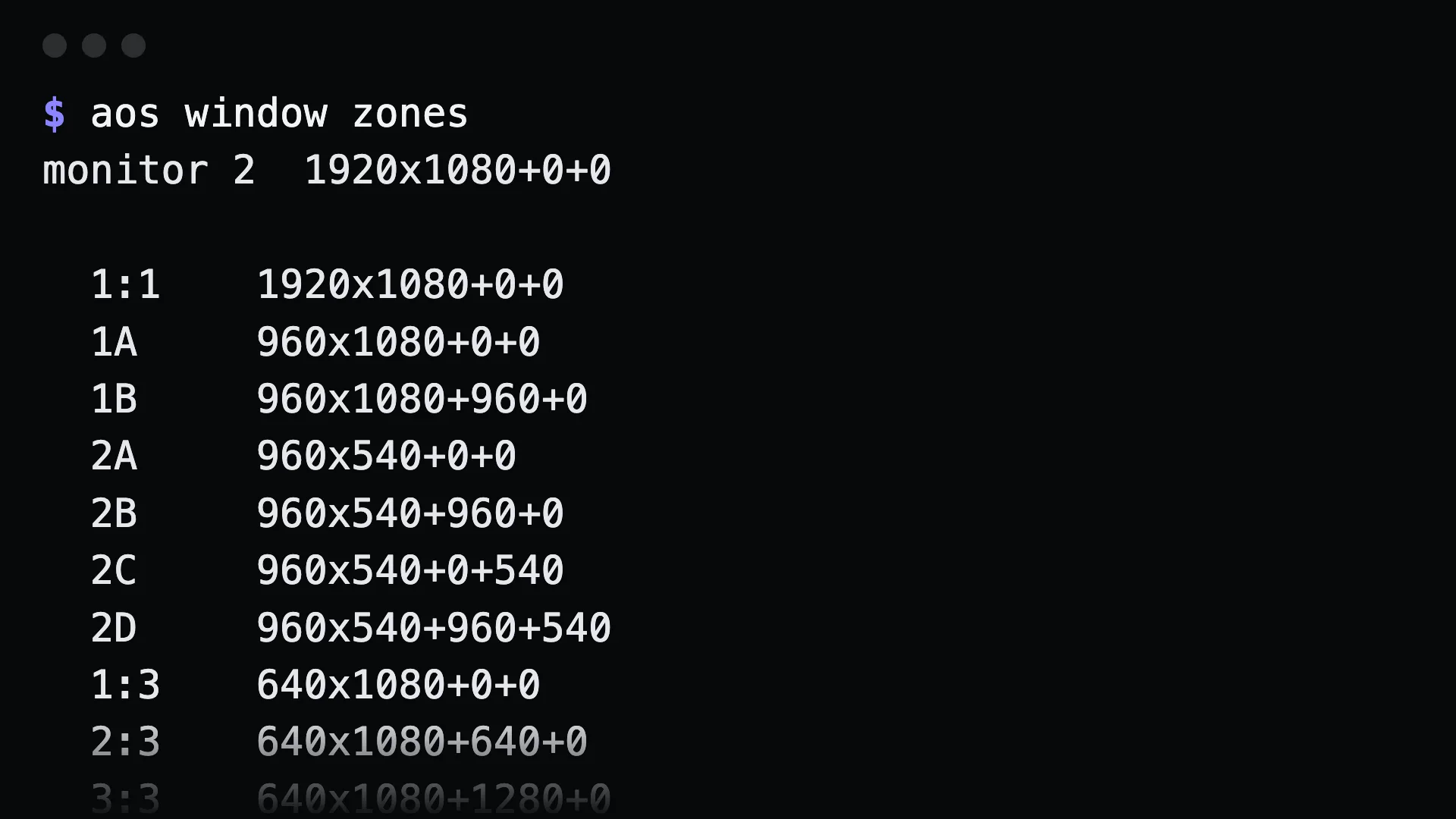
What to tell an agent
Section titled “What to tell an agent”Put VS Code full on monitor 1. Split monitor 2 with the terminal on the left and Chrome on the right. Then save that as my coding layout.
Gotchas
Section titled “Gotchas”- App names match the window’s app name. Run
aos window listto see the exact names. Partial matches work when they are unambiguous. - A window has to exist before it can be moved.
aos launch Chrome --waitstarts the app and waits for its window. - Monitor numbers come from
aos display list. They can change when you plug a monitor in or out. - On macOS the terminal needs Accessibility permission.
aos permission request accessibilityasks for it.